Home›Stash + VidVana Integration
How to Connect VidVana to Stash — Your Metadata, Inside Your Player
If you've spent years tagging your collection in Stash — performers, studios, categories, scene markers — VidVana Pro can read all of that directly from your Stash database file. No server. No API. No re-tagging. Your metadata moves into VidVana's encrypted vault and becomes instantly searchable.
What the Integration Actually Does
Stash stores everything it knows about your videos in a local SQLite database file called stash-go.sqlite. Every performer name, studio, tag, rating, and scene marker you've built up lives in that file.
VidVana Pro can open that file directly — read-only, so it never touches your Stash data — and import everything into VidVana's own encrypted vault. From that point on, Stash doesn't need to be running. VidVana works entirely from its own local copy of the metadata.
What gets imported
- ›Performer names
- ›Studio names
- ›Tags and categories
- ›Scene markers (timestamps + titles)
- ›Scene titles
- ›Video resolution and duration
What stays in Stash only
- ›Cover art and images
- ›Performer photos
- ›Scene descriptions
- ›Scraper data and URLs
- ›Stash ratings (read for display only, not written to VidVana)
Step-by-Step Setup
The whole process takes about two minutes. You need VidVana Pro and at least one completed Stash sync so your database has metadata in it.
Find your Stash database file
The file is called stash-go.sqlite. Default locations:
Mac:~/.stash/stash-go.sqlite
Windows:%USERPROFILE%/.stash/stash-go.sqlite
You can also check or change this path inside Stash under Settings → System → Database Path.
Open VidVana Settings → External Libraries
In VidVana, open Settings (⌘+, on Mac, Ctrl+, on Windows) and click External Libraries in the left sidebar. This tab is only available on Pro.
Turn on the Stash toggle and point to your database file
Flip the Enable Stash Integration toggle to ON. Then click Browse and navigate to your stash-go.sqlite file, or paste the full path directly into the text field. The status dot will turn green when VidVana can read the file.
Click Sync Now
This is the first and only manual sync you need to run. VidVana reads your Stash database, matches each scene to a video in your library using the file fingerprint, and imports the metadata into its encrypted vault.
On a large library (5,000+ videos on a NAS), the first sync can take 10–15 minutes. Subsequent syncs are much faster — VidVana remembers which videos it already matched and skips the fingerprint step for those.
Done — your metadata is live
Once sync completes, every matched video in your library shows a blue ⓘ button on its card. Click it to see the full info panel: performer names, studio, tags, Stash rating, and resolution. The search bar now finds videos by performer name, studio, or tag — even if the filename is video_1234.mp4.
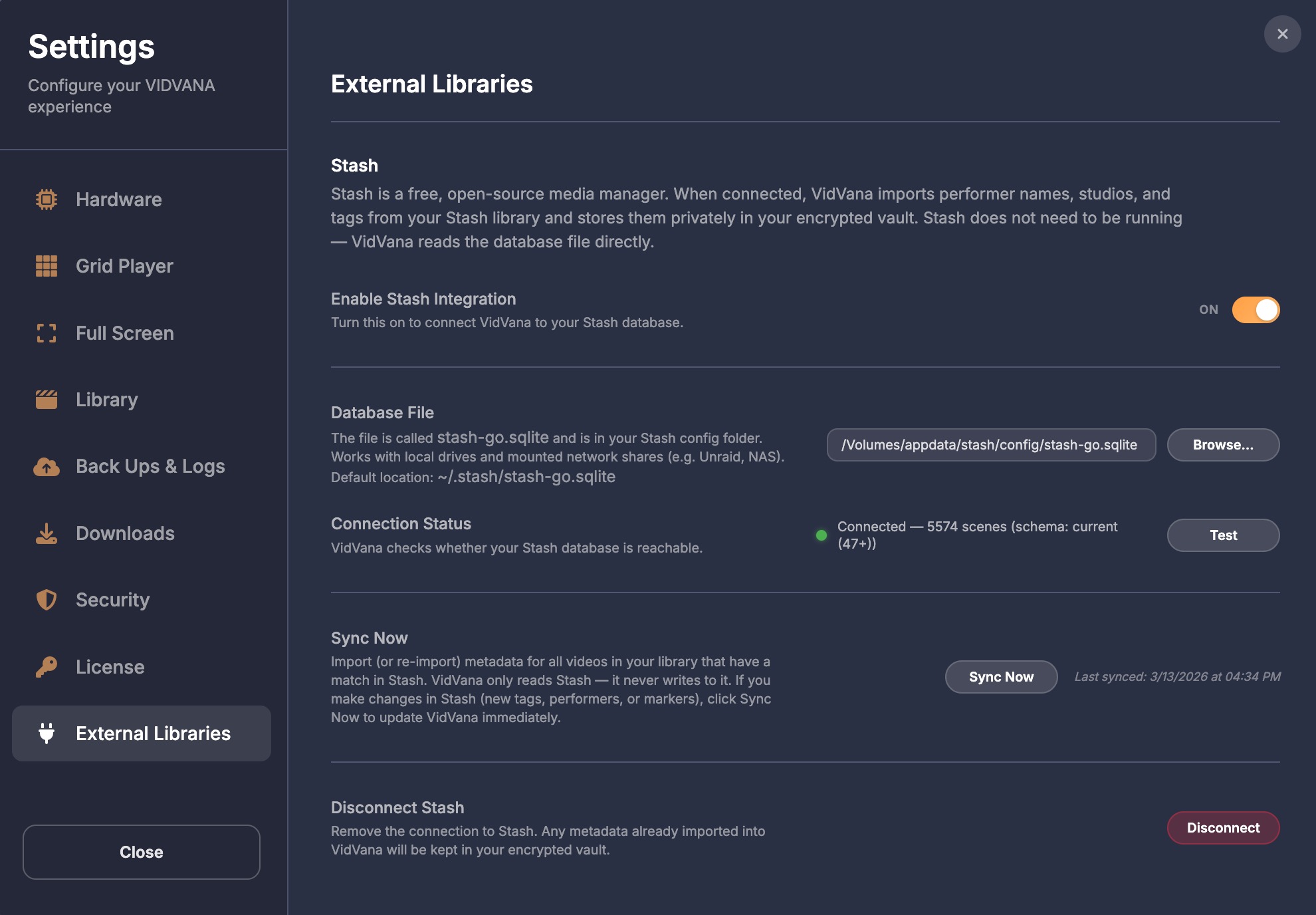
VidVana External Libraries settings — Stash connected, 5,574 scenes matched and synced.
What You Get After Syncing
Performer and Tag Search
The search bar in VidVana's library now searches across performer names, studio names, and tags — not just filenames. Type a performer name and every video featuring them appears instantly, regardless of what the file is actually called on disk. Select the results and load them to the grid for a performer session in two clicks.
The Tags Tab
A dedicated Tags tab appears in the library showing three scrollable columns: Studios, Performers, and Tags. Every value from your Stash library appears as a pill with a live count of how many videos match. Click multiple pills to build a filter — for example, a specific studio and two tags — and apply it to your library in one click. Each column has its own search box for when you have hundreds of performers to scroll through.
The Info Panel (ⓘ Button)
Any library card with Stash data shows a small blue ⓘ button. Click it to see the full info panel for that video: scene title (which you can apply as the VidVana display name with one click), studio badge, performer avatars, tag pills, Stash rating, resolution, and release date. Click any performer or tag to instantly filter the library to matching videos.
Scene Markers as Blue Bookmarks
If you've placed scene markers in Stash — timestamps with a title and tag — those markers appear as blue triangles on the fullscreen scrubber alongside your existing orange VidVana bookmarks. Hover to see the marker's title and tag. Click a blue marker to lock it in as a permanent VidVana bookmark, which then becomes available in the Compilation Maker and Quick Play. Blue markers update automatically whenever you sync.
Automatic Background Sync
After the first manual sync, VidVana syncs automatically: on every app launch, after you add new folders to your library, and whenever Stash's database file changes on disk (with a 30-second debounce to avoid hammering the file during active Stash sessions). You never need to manually sync again unless you want to force an immediate update.
Privacy — How the Metadata Is Stored
All imported Stash metadata is stored in VidVana's encrypted vault using AES-256-GCM encryption — the same encryption that protects the rest of your library. The metadata is tied to your installation and protected behind your PIN. In Duress mode (if you enter your Duress PIN), the Stash data disappears along with the rest of your library — no performers, no tags, no info buttons.
VidVana never sends any Stash metadata to the internet. The sync happens entirely locally between VidVana and your Stash database file. No Stash account, no Stash server, no network connection required.
Troubleshooting — Common Problems and Fixes
▸Status dot stays red — "Cannot read database"
The most common cause is that Stash is currently running and has the database locked. Quit Stash completely, then click Test again in VidVana. If that doesn't work, check that the path in VidVana points to the actual .sqlite file, not the folder it's in.
▸Sync completes but zero videos matched
VidVana matches videos using a file fingerprint (oshash) — the same algorithm Stash uses. If Stash hasn't finished scanning your library, it won't have fingerprints for your videos yet. Let Stash complete a full library scan first, then sync again in VidVana.
▸Only some videos matched — many showing no metadata
Videos only match if Stash has scanned them and generated a fingerprint. Videos added to your library after the last Stash scan won't have fingerprints yet. Run a new scan in Stash, then click Sync Now in VidVana to pick up the new matches.
▸Can't find stash-go.sqlite on Mac
The default location is ~/.stash/stash-go.sqlite. The ~ means your home folder — in Finder, press Cmd+Shift+G and type ~/.stash to navigate there directly. If the file isn't there, open Stash in your browser, go to Settings → System, and check the Database Path field for the actual location.
▸Can't find stash-go.sqlite on Windows
The default location is %USERPROFILE%\.stash\stash-go.sqlite. Open File Explorer, click the address bar, type %USERPROFILE%\.stash and press Enter. If the file isn't there, open Stash in your browser, go to Settings → System, and check the Database Path field.
▸Running Stash in Docker — VidVana can't find the database
The database file lives on your host machine, not inside the Docker container. Check your Docker volume mapping — the stash-go.sqlite file will be in whatever host directory you mapped to /root/.stash inside the container. Point VidVana at the host path, not the container path.
▸Performers and tags imported but scene markers aren't showing
Scene markers only appear on videos that were matched by fingerprint. If a video shows performer/tag data but no blue markers, check whether that scene has markers in Stash — open the scene in Stash and look for the Markers tab. If markers exist in Stash but aren't in VidVana, click Sync Now to force a fresh import.
▸VidVana was working with Stash but stopped after a Stash update
Stash database schema updates occasionally between major versions. Click Test in VidVana's External Libraries settings — if the status shows a schema version mismatch, click Sync Now to re-import with the updated schema. If the error persists, disconnect and reconnect Stash using Keep & Convert to preserve your existing metadata.
Who This Is For
You've built up years of Stash metadata and want better playback
This is the main use case. Stash is excellent at scraping and organising — but it plays one video at a time in a browser tab. VidVana gives you a 5×5 multi-stream grid, session automation, encryption, and compilations, with all your Stash metadata already there on day one.
You want to stop using Stash but keep your metadata
Run one sync, then disconnect Stash using Keep & Convert. All your performers, studios, and tags stay in VidVana permanently. You can uninstall Stash entirely. Nothing is lost.
You run Stash on a NAS or in Docker with different file paths
The oshash fingerprint matching handles this. VidVana reads 128KB from each video file to compute the same fingerprint Stash uses, then matches by fingerprint rather than path. It works even if Stash sees your files at /data/videos and VidVana sees them at /Volumes/NAS/videos.
You're new to Stash and wondering if it's worth the setup
If you have a large collection and want performer/studio/tag organisation, Stash is still the best tool for scraping that metadata automatically. Set it up, let it scrape, then connect VidVana. You get the best of both: Stash's metadata depth and VidVana's playback and privacy.
Bottom Line
If you're already a Stash user, this integration means you don't have to choose between your metadata and a proper playback setup. Point VidVana at your database, run one sync, and your performers, studios, tags, and scene markers are live inside an encrypted multi-stream player. Stash keeps doing what it does best. VidVana handles the rest.
More Guides
Tested as of this writing with a recent VidVana Pro build and Stash v0.27+. The integration reads the Stash SQLite database directly and works with all Stash versions from v0.7 onward.